Creating and Managing Purchase Orders
Effective procurement is just as important as generating revenue. The Evolvv invoice and procurement platform provides a robust Purchase Order (PO) system to help you track expenses, manage vendor relationships, and maintain tight control over your supply chain.
Whether you are ordering physical inventory or securing third-party services, creating a standardized PO ensures both parties agree on pricing and deliverables before any work begins.
Here is how to create and manage your Purchase Orders within the Hub.
Step 1: The Purchase Orders Dashboard
Navigate to Purchase Orders on your left-hand Invoicing menu.
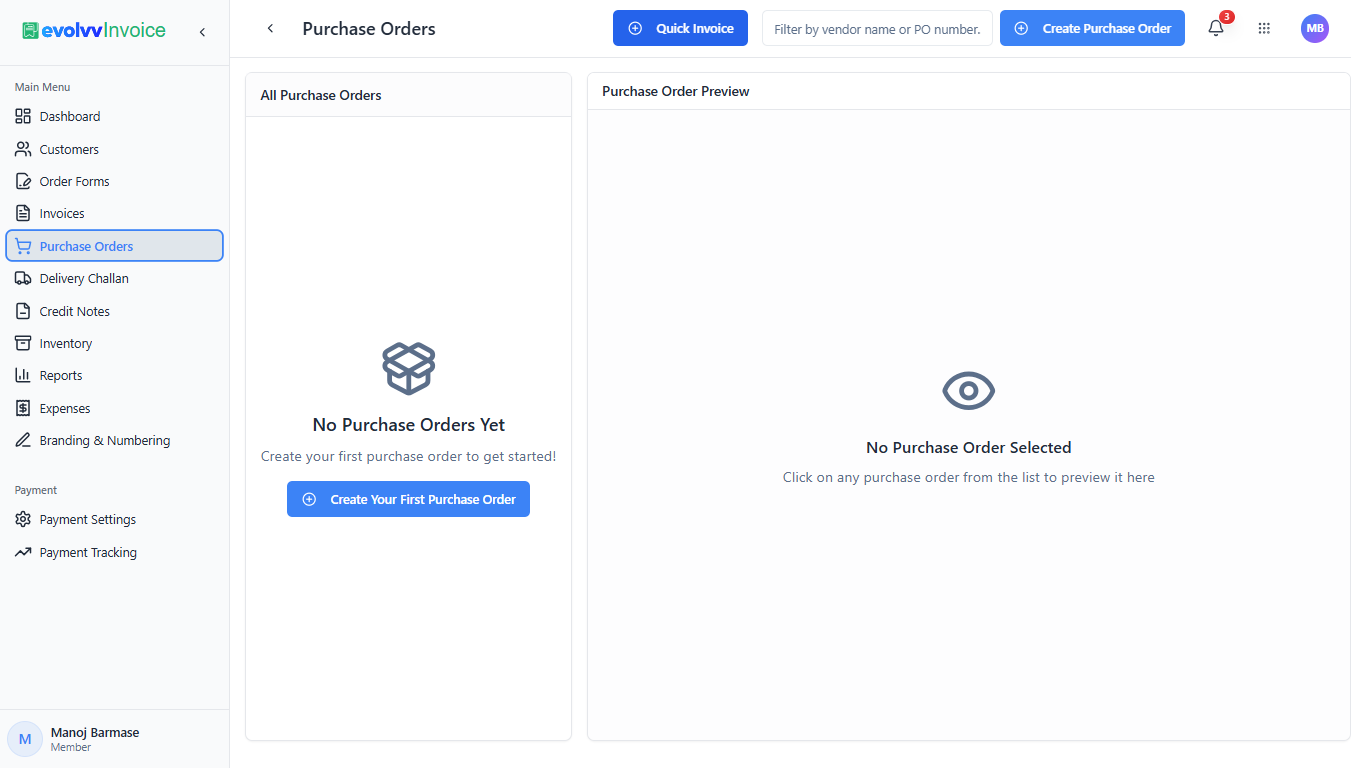
This dashboard acts as your central procurement ledger.
- List View: The left panel will display a chronological list of all your drafted, sent, and completed purchase orders. You can use the search bar at the top to filter by Vendor Name or specific PO Number.
- Live Preview: Clicking on any PO from the list instantly renders a full document preview in the right-hand pane, allowing you to review terms without opening multiple tabs.
- Quick Actions: Use the Quick Invoice button for rapid billing, or click the blue + Create Purchase Order button to start a new procurement request.
Step 2: Drafting a New Purchase Order
Clicking "Create Purchase Order" opens the dedicated drafting interface.
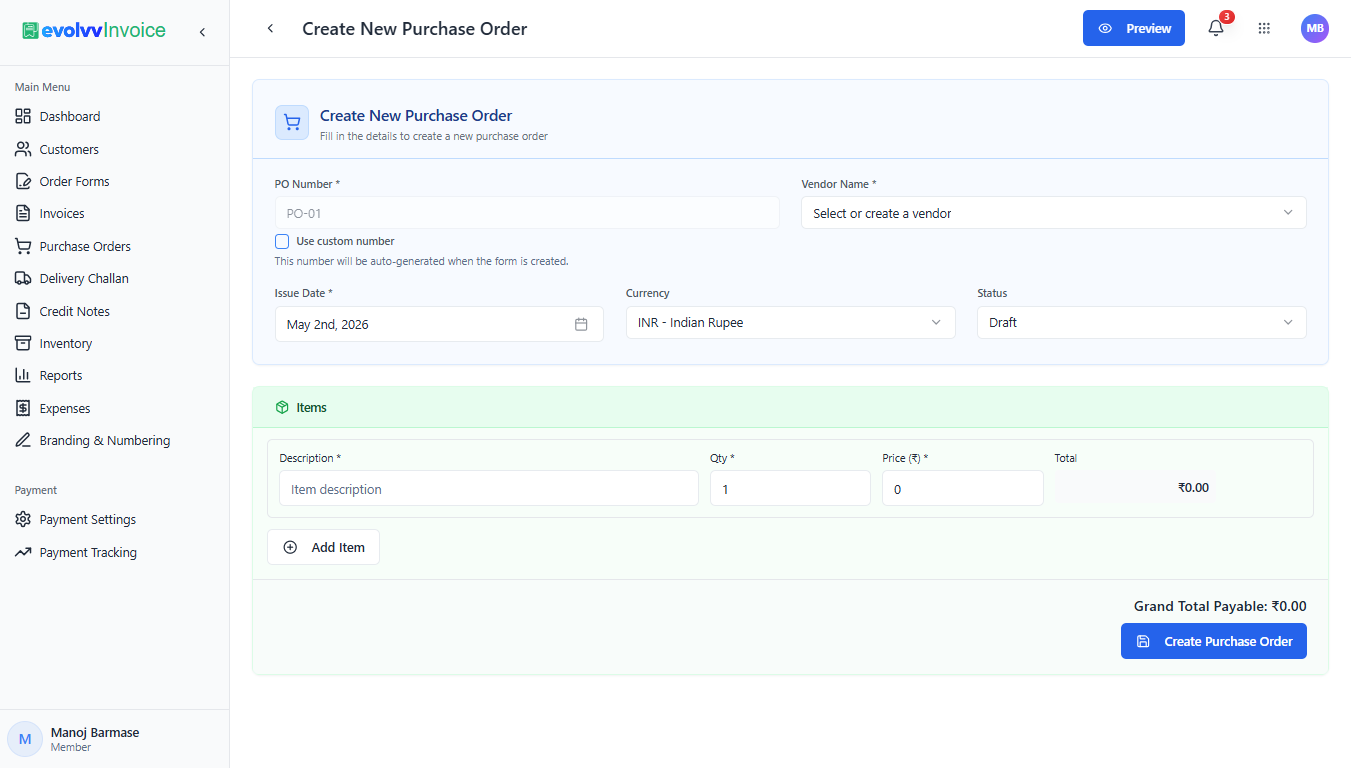
Order Details & Vendor Selection:
- PO Number: The system auto-generates a sequential PO number to maintain clean accounting records. You can override this by checking the "Use custom number" box if you have an internal tracking system.
- Vendor Name: Select an existing supplier from the dropdown or seamlessly create a new vendor profile on the fly.
- Localization: Set the Issue Date and specify the Currency for international or domestic procurement.
Line Items: Scroll down to the Items section to detail exactly what you are purchasing. Add the Description, Quantity, and agreed-upon Unit Price. The system will automatically calculate the Grand Total Payable in real-time.
Step 3: Previewing and Finalizing the PO
Before sending the official request to your vendor, it is best practice to review the formatted document.
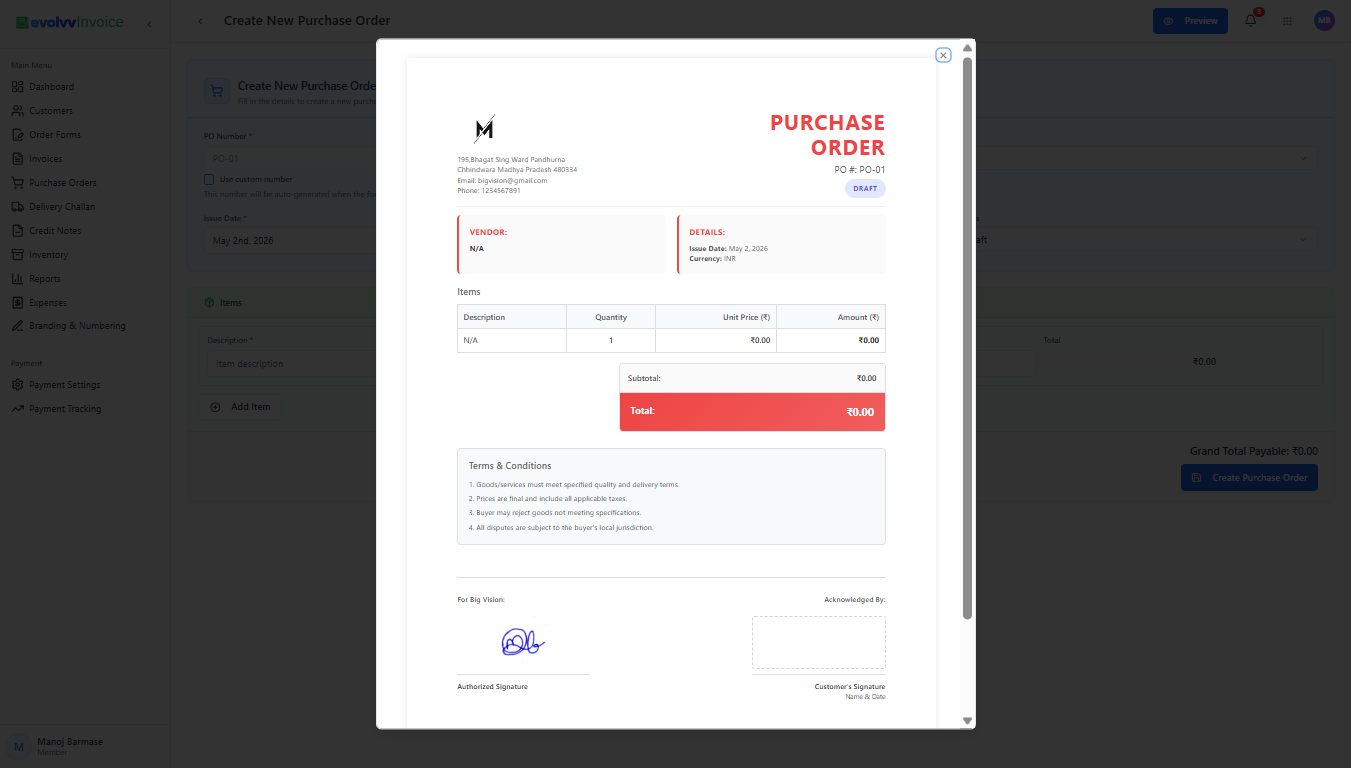
Click the Preview button located at the top right of the screen. A modal will appear showing the final, professional layout of your Purchase Order.
This view includes:
- Your company's branding and official address.
- The mapped Vendor details.
- A clear breakdown of the requested items, subtotals, and final calculated amounts.
- Standard Terms & Conditions protecting your business (e.g., quality requirements, tax finality, and jurisdiction).
- The authorized digital signature of your purchasing manager.
Once everything is verified, close the preview and click the blue Create Purchase Order button at the bottom right to finalize the document!