Managing Inventory and Smart Reordering
For product-based businesses, accurate stock tracking is the line between profit and loss. The Evolvv inventory management software goes beyond simple item lists, offering a dynamic financial ecosystem that tracks stock levels in real-time, alerts you when supplies run low, and automates your reordering process.
By tightly integrating your repository items with invoices, sales data, and purchase orders, you eliminate manual data entry errors and prevent costly stockouts.
Here is a comprehensive guide to mastering the Inventory module.
Step 1: The Item Repository Dashboard (Overview)
Navigate to the Inventory tab on your left-hand menu. This loads the master Item Repository dashboard. Industry standards dictate starting with this view to get a complete snapshot of your catalog.
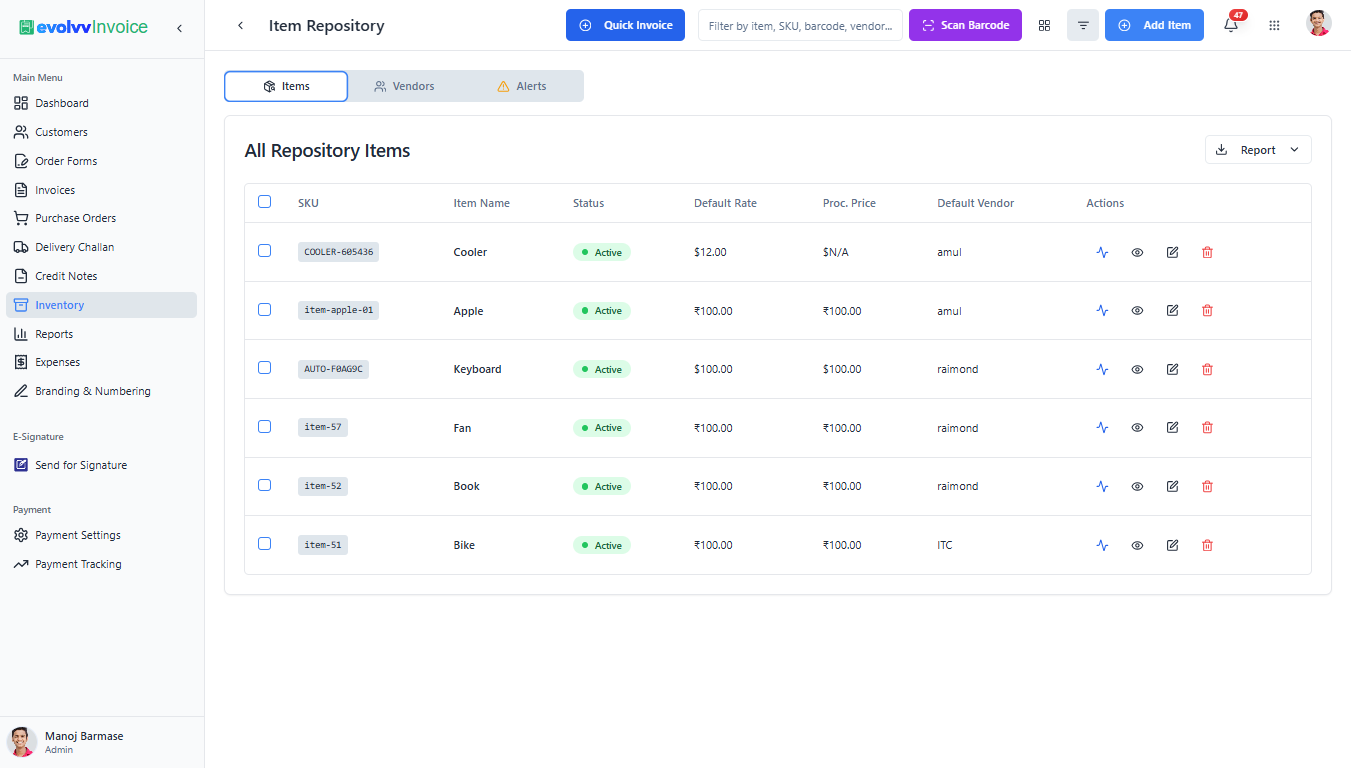
This centralized dashboard acts as your inventory ledger:
- Master List: You see all your products and services categorized by SKU.
- Key Financial Metrics: Instantly view the Default Selling Rate and Procurement Price (your cost) alongside the linked default vendor.
- Visual Status: Pill-shaped tags clearly indicate if an item is Active or needs attention.
- Quick Actions: Use the blue + Add Item button at the top right to create new stock, or use the in-built Scan Barcode feature for rapid lookups and point-of-sale activities.
Step 2: Defining a New Repository Item
To add a new product or service to your catalog, click + Add Item. The creation form is designed to capture detailed inventory configurations across two dynamic sections.
A. Stock Tracking & Reorder Alerts
The top section of the form configures how Evolvv should manage this item’s availability.
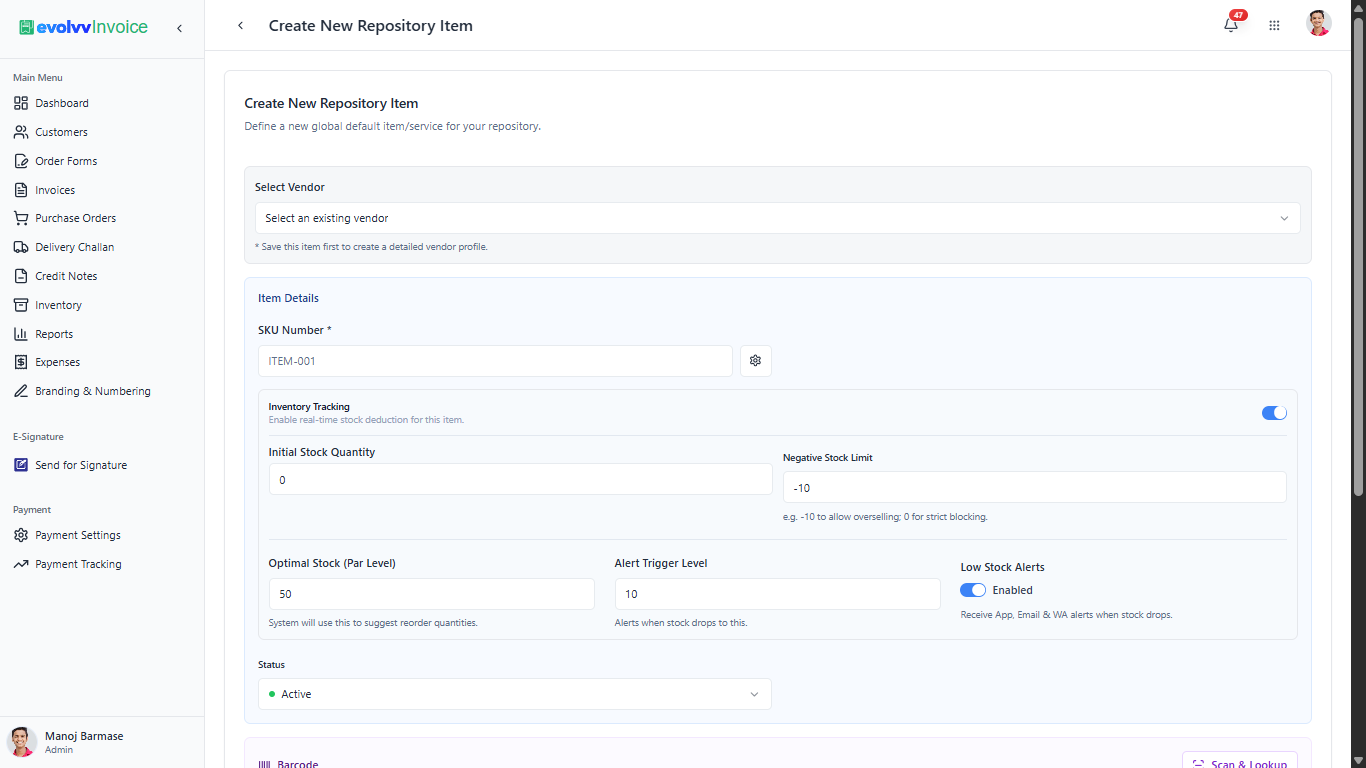
- SKU Number: Assign a unique Stock Keeping Unit identifier (e.g., ITEM-001) for precise tracking across warehouses and invoices.
- Inventory Tracking: Toggle this ON to enable real-time stock deduction whenever this item is added to an executed invoice or delivery challan.
- Negative Stock Limit: Configure strict blocking or overselling rules. Set to
0to block sales at zero stock; set to a negative value (e.g.,-10) to allow a limited buffer. - Par Level & Alert Level: Set the Alert Trigger Level (minimum threshold) and the Optimal Stock (Par Level) (the suggested restock point). Toggle Low Stock Alerts ON to receive automated notifications via Email, the web app, and WhatsApp.
B. Barcoding and Dynamic Pricing
The bottom section handles the visual identification and pricing strategies.
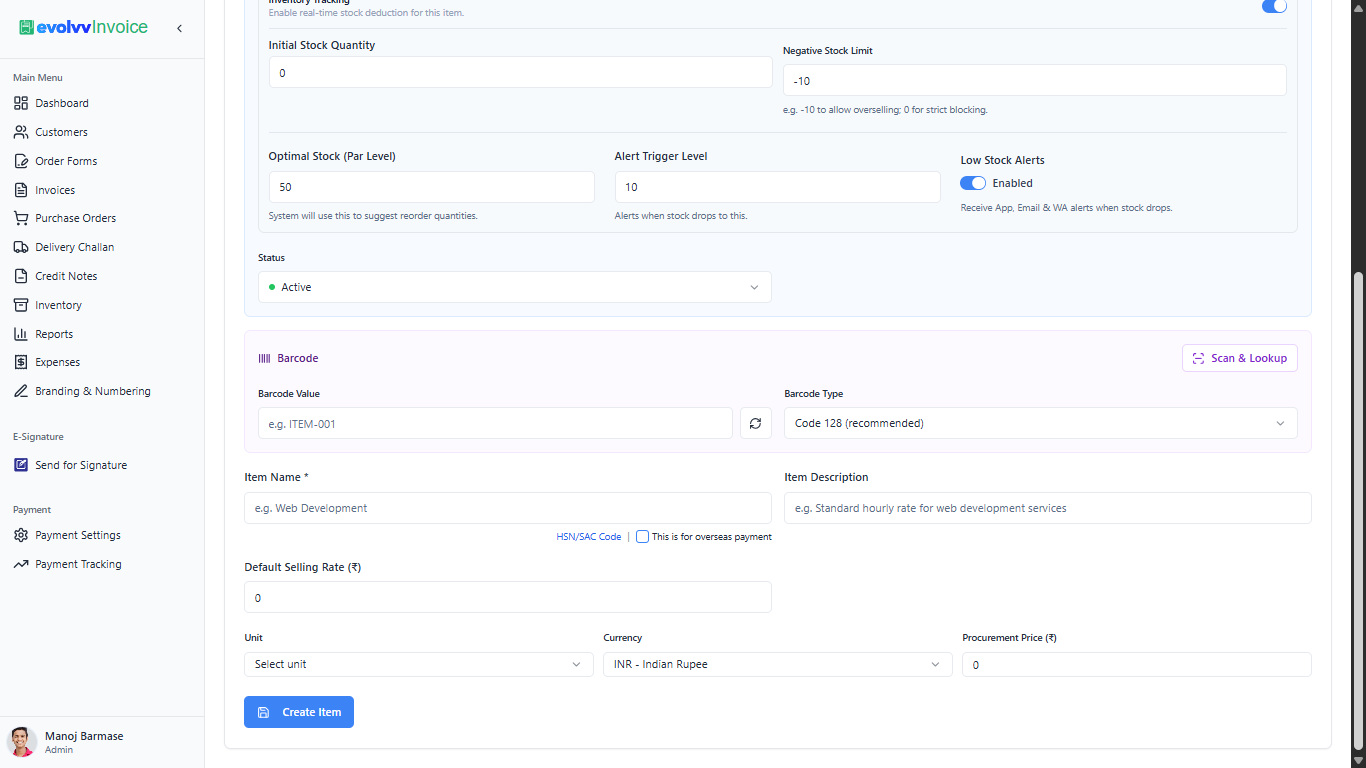
- Barcode Generation: Use the Scan & Lookup feature to bind a physical barcode (like Code 128) to the SKU for rapid POS invoicing.
- Pricing Structure: Set your Default Selling Rate and Procurement Price. This allows the system to automatically map your margins during reporting.
- HSN/SAC Code: Ensure regulatory compliance by mapping the correct HSN (Goods) or SAC (Services) codes.
Step 3: Vendor Management and the Supplier Directory
A robust inventory system requires meticulously maintained supplier records.
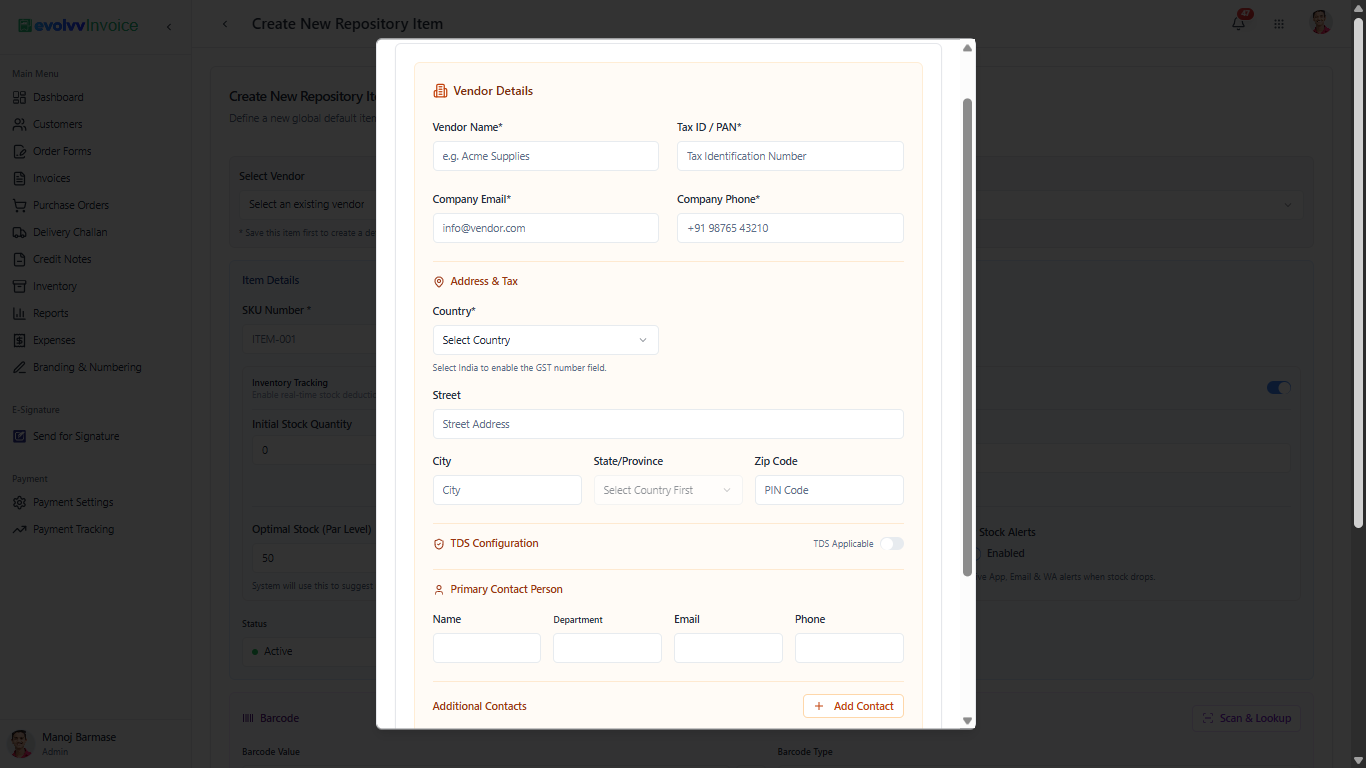
When creating or editing an item, you can link it to an existing vendor or click to create a new profile instantly. The Vendor Details modal form captures crucial data for procurement and tax compliance, including PAN/Tax ID, address details, specific TDS (Tax Deducted at Source) configurations, and multiple contact persons.
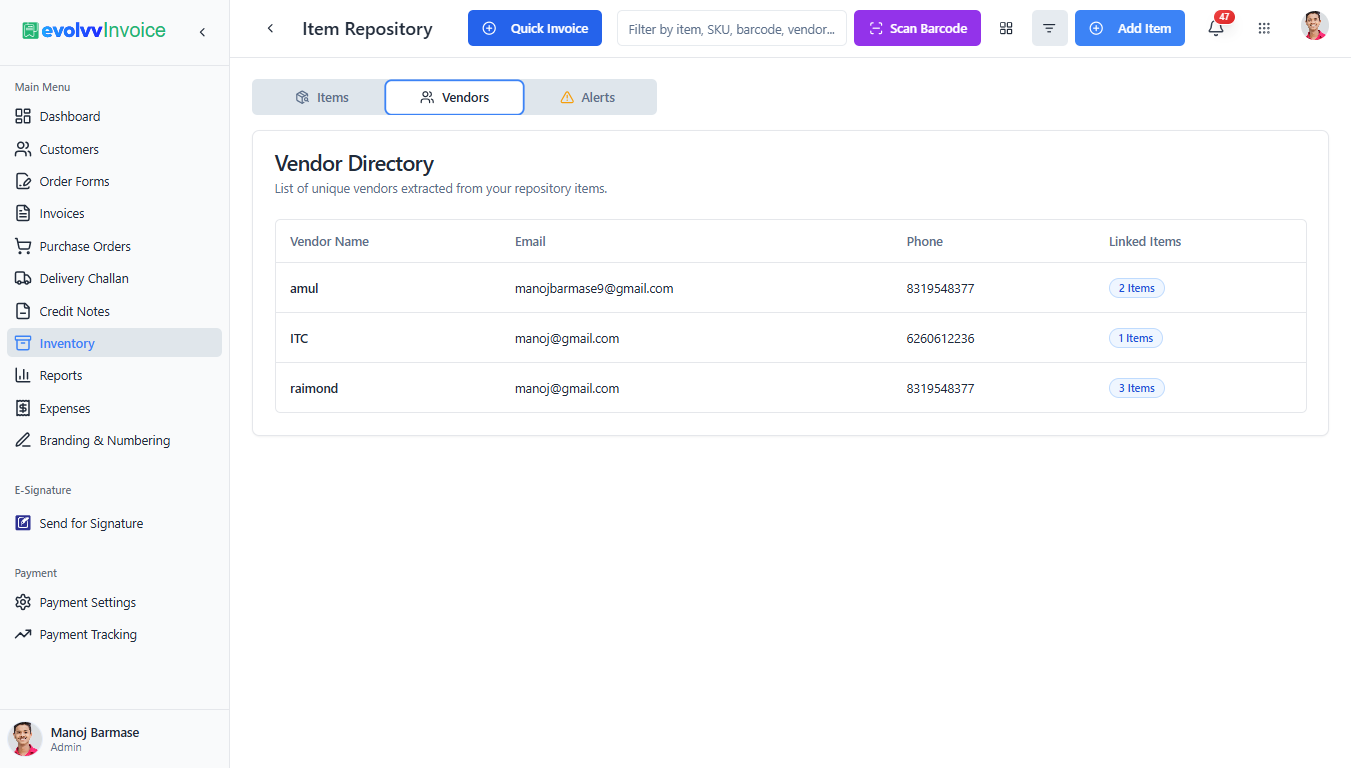
To view your complete supplier network, navigate to the Vendors tab within the Item Repository. This directory provides a clean, audit-ready list of all suppliers extracted from your linked repository items.
Step 4: Smart Reorder Dashboard (Automated Procurement)
The pinnacle of the Evolvv Inventory module is its automated procurement workflow, located under the Alerts tab.
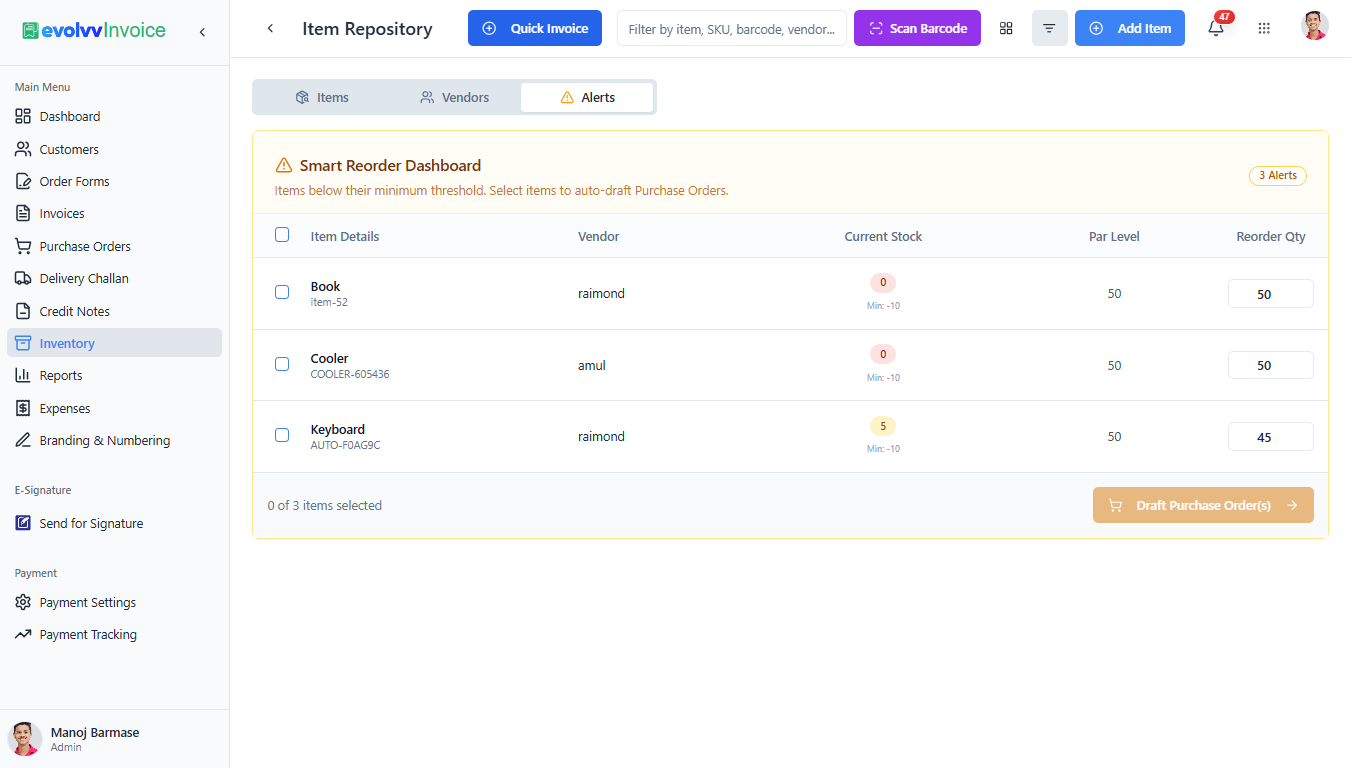
This is your automated helpdesk for stock replenish:
- The dashboard instantly flags any item that has fallen below its pre-configured Alert Trigger Level.
- It visually displays the Current Stock alongside the Par Level (optimal target).
- The system automatically calculates and suggests the precise Reorder Qty needed to restore inventory to optimal levels.
- Instant Action: Simply select the flagged items and click the blue Draft Purchase Order(s) button. Evolvv will auto-draft accurate Purchase Orders pre-mapped to the respective vendors, dramatically accelerating your procurement lifecycle!