Recording and Managing Expenses
Generating revenue is only half of the financial equation; tracking where that money goes is just as critical for profitability. The Evolvv business expense tracking platform provides a comprehensive system to record your outflows, digitize your receipts, and even pass billable expenses directly to your clients.
By keeping your expenses and invoices in the same ecosystem, you gain a real-time, accurate picture of your net cash flow without needing external spreadsheets.
Here is how to record, categorize, and manage your business expenses.
Step 1: The Expenses Dashboard
Navigate to the Expenses tab on your left-hand Invoicing menu.
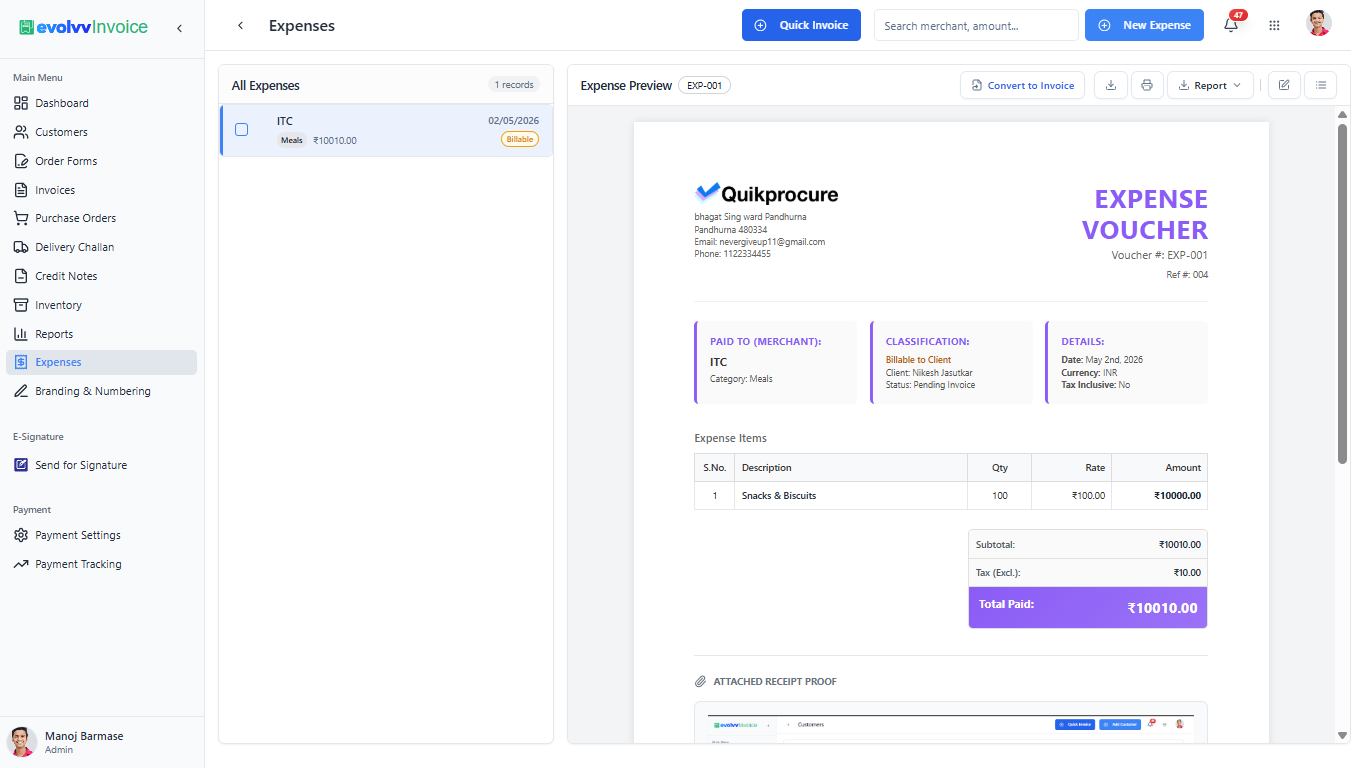
This centralized dashboard acts as your digital expense ledger:
- Expense List: The left panel logs all recorded expenses. You can instantly see the merchant name, the date, the category (e.g., Meals, Travel, Software), and the total amount.
- Billable Tags: If an expense is marked to be reimbursed by a client, it prominently displays a Billable tag, ensuring no recoverable costs slip through the cracks.
- Live Preview: Selecting an expense generates a detailed "Expense Voucher" on the right, providing a clear breakdown of the transaction.
Step 2: Recording a New Expense
To log a new transaction, click the blue + New Expense button at the top right. The creation form is divided into three intuitive sections.
A. Merchant and Category Details
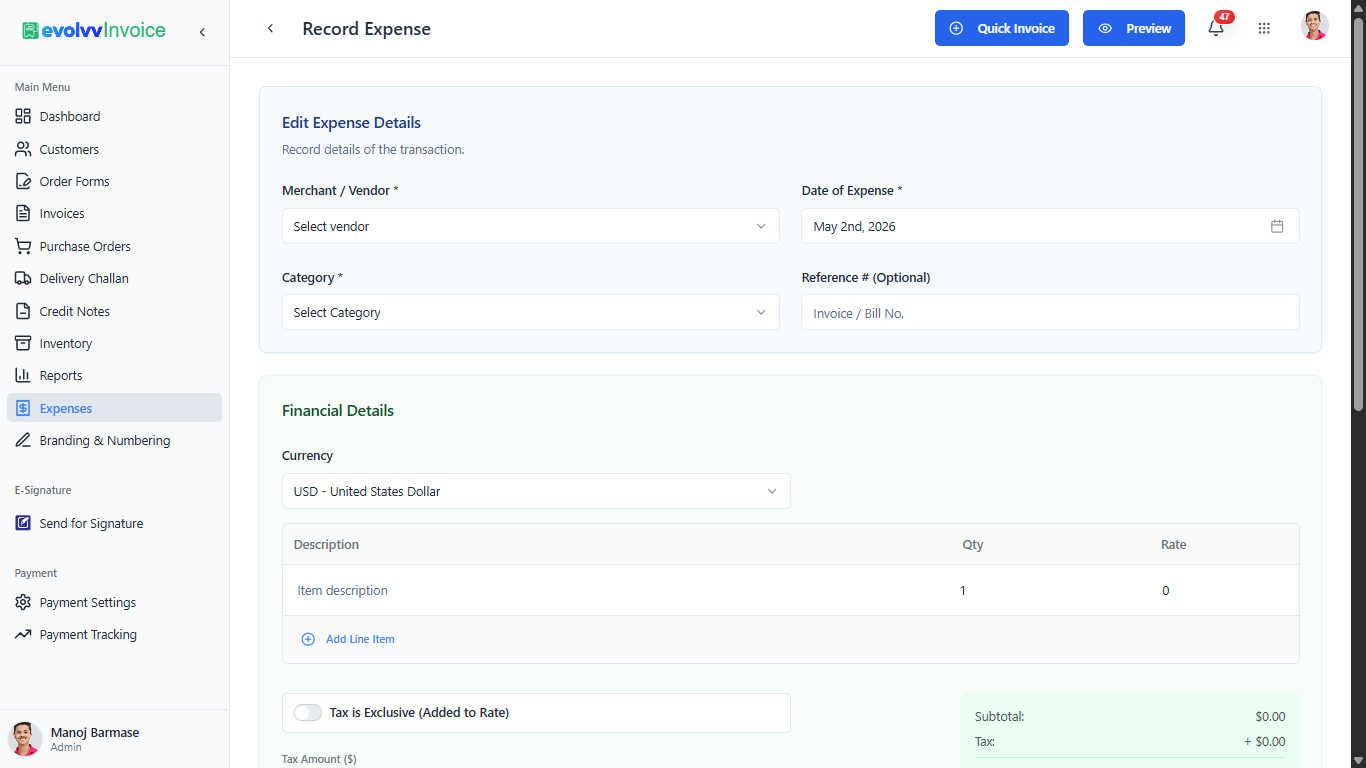
- Merchant / Vendor: Select an existing vendor or type a new merchant name (e.g., AWS, Local Office Supplies).
- Category: Properly categorizing expenses is vital for tax deductions. Select the appropriate accounting category.
- Date & Reference: Log the exact Date of Expense and any associated Reference # from the physical bill.
B. Financial Details
- Specify the Currency and provide a brief Description of the item.
- Enter the Qty and Rate. You can also specify if the tax is exclusive or inclusive, allowing the system to calculate the precise Total Paid.
C. Categorization & Proof
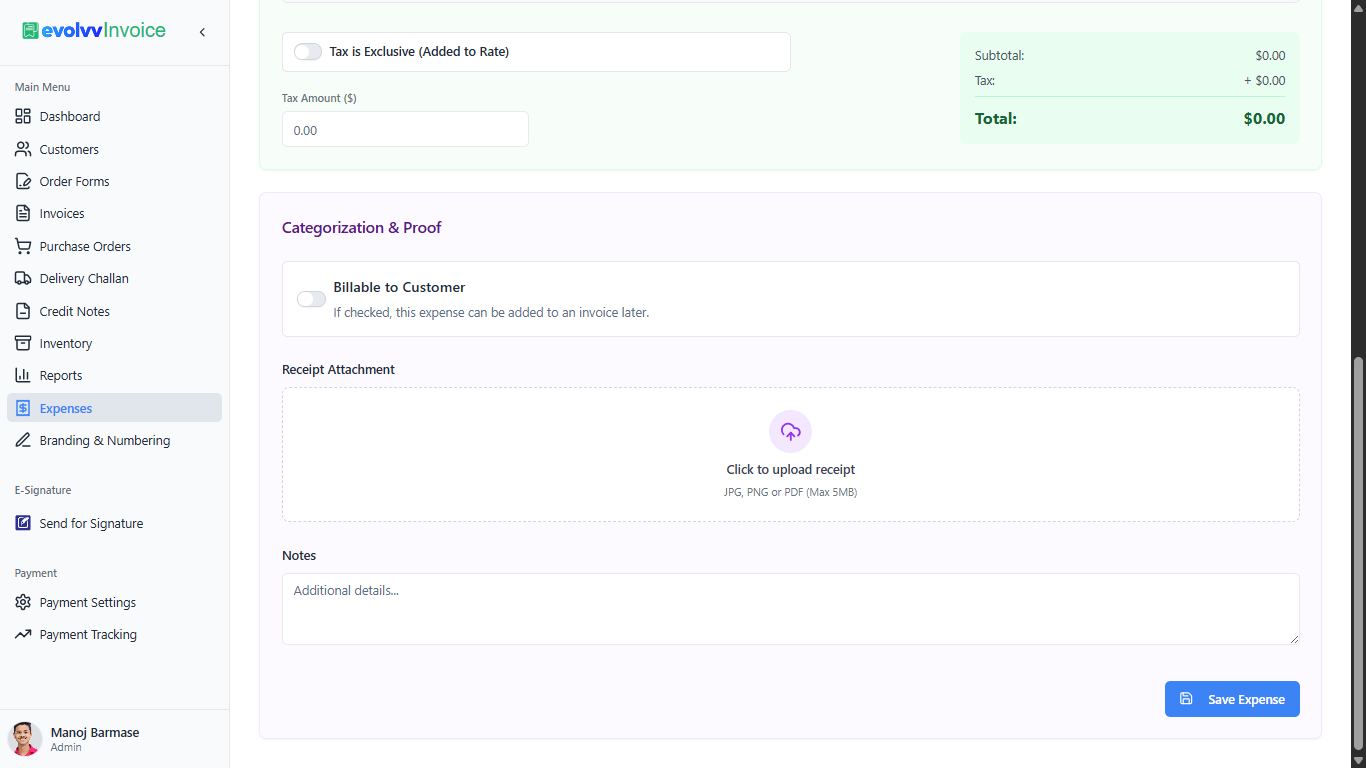
- Billable to Customer: If you are purchasing something on behalf of a client, toggle this ON. Evolvv will allow you to easily attach this expense to their next invoice.
- Receipt Attachment: Never lose a thermal receipt again. Click the upload area to attach a digital copy (JPG, PNG, or PDF) of your physical bill for audit-proof record keeping.
Step 3: Expense Vouchers and Reimbursement
Once an expense is recorded, Evolvv automatically generates a professional, standardized document.
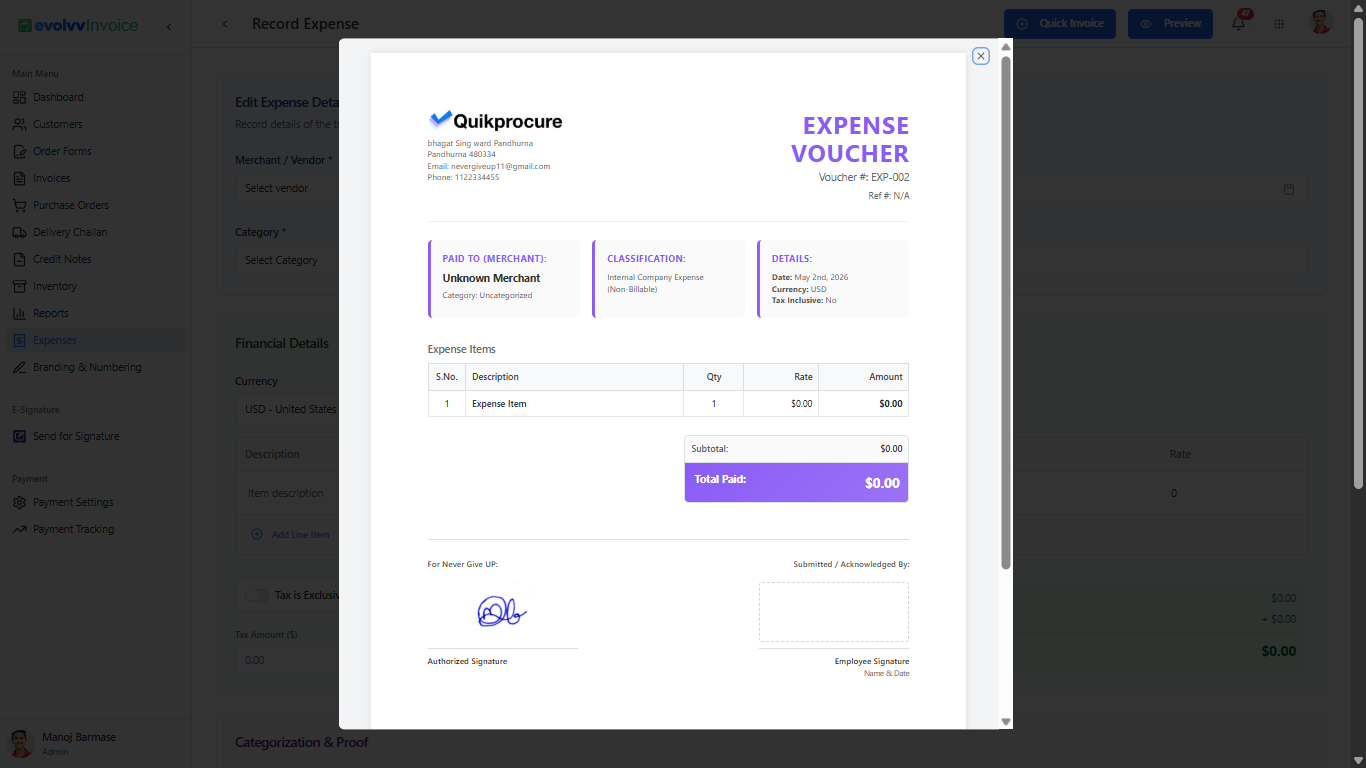
Click the Preview button to view the Expense Voucher. This document outlines the merchant details, the classification (Billable/Non-Billable), and includes an authorized signature block for internal approval workflows.
Converting to Invoice: If you flagged the expense as billable, you can click the Convert to Invoice button directly from the preview pane. Evolvv will instantly draft a new invoice for the associated client, pulling in all the expense line items and attached receipts, completely automating your reimbursement cycle!