Creating and Managing Delivery Challans
When transporting physical goods to a client—whether for approval, repair, or standard delivery—a commercial invoice is not always the correct immediate document. The Evolvv invoicing software provides a dedicated Delivery Challan workflow to ensure your shipments remain legally compliant during transit.
A Delivery Challan acts as a formal proof of delivery, detailing the exact quantity and condition of the goods being transported before the final tax invoice is raised.
Here is how to create and manage Delivery Challans effectively.
Step 1: The Delivery Challan Dashboard
Navigate to the Delivery Challan tab on your left-hand Invoicing menu.
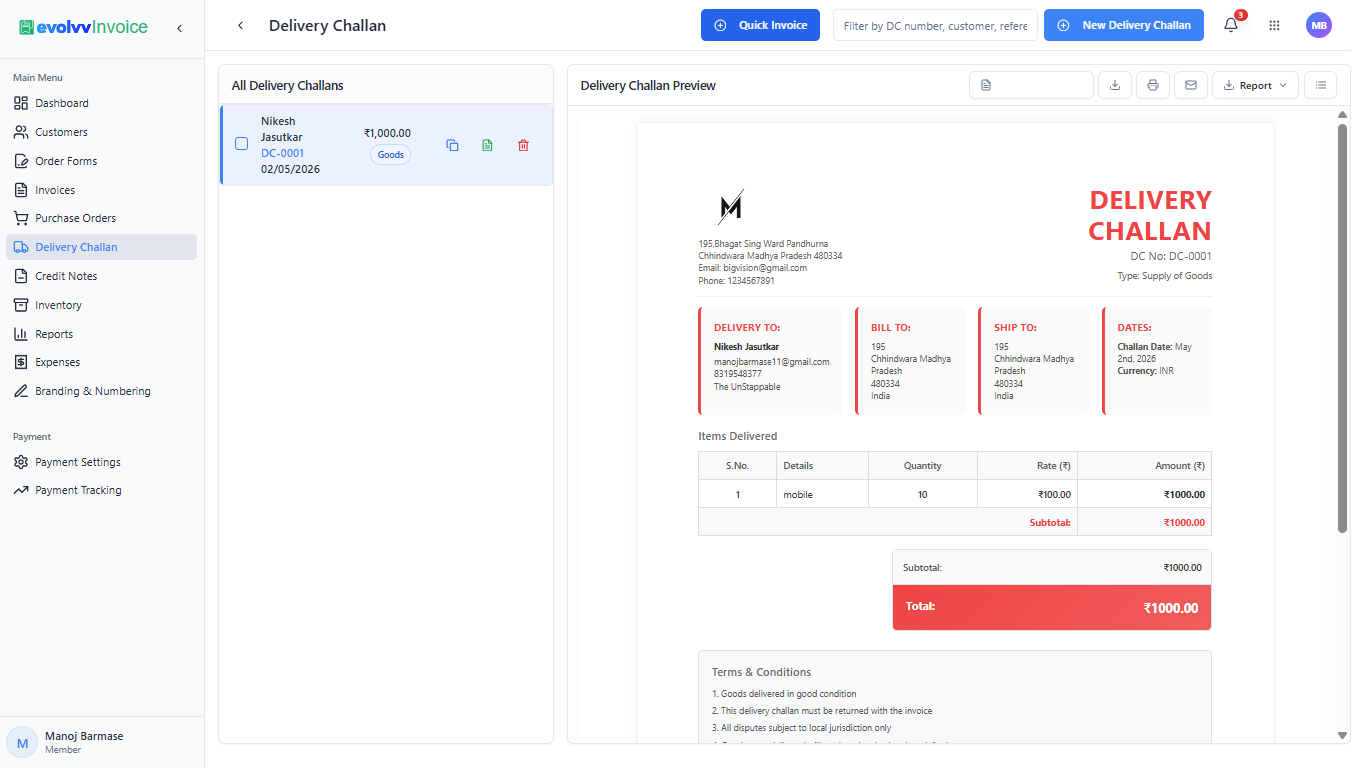
This dashboard is your centralized logistics hub.
- Master List: The left panel displays all generated challans. You can quickly see the customer name, challan number (e.g., DC-0001), date, and total value.
- Instant Preview: Selecting any record instantly loads a full-page document preview on the right.
- Quick Actions: Use the action icons on the top right of the preview pane to instantly Download (PDF), Print, or Email the document to your logistics team or client.
Step 2: Generating a New Challan
To authorize a new shipment, click the blue + New Delivery Challan button at the top right.
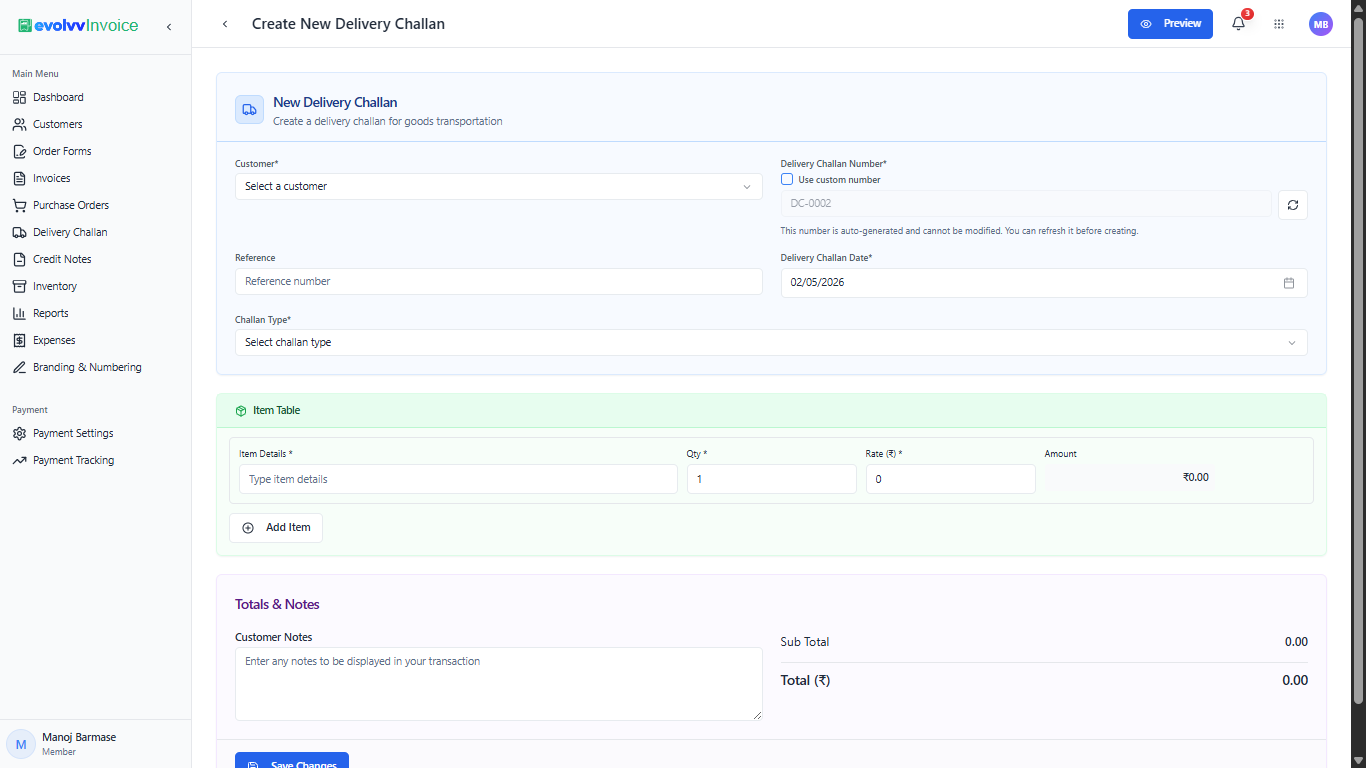
Customer & Document Setup:
- Customer: Select the recipient from your CRM directory. Their shipping and billing addresses will auto-populate.
- Challan Details: The system generates a sequential Delivery Challan Number automatically. You must also select a Challan Type (e.g., Supply of Goods, Job Work, or Returnable basis) to clarify the nature of the transit.
- Reference: Add any related internal tracking IDs or customer Purchase Order numbers here.
Item Table & Notes:
- Detail the exact items being shipped in the Item Table. Include the precise quantity and rate. Even if no immediate tax is being collected, declaring the monetary value is crucial for transit insurance and legal compliance.
- Use the Customer Notes field to add specific delivery instructions or handling warnings.
Step 3: Document Verification and Dispatch
Before handing the document over to your transport team, always verify its layout and details.
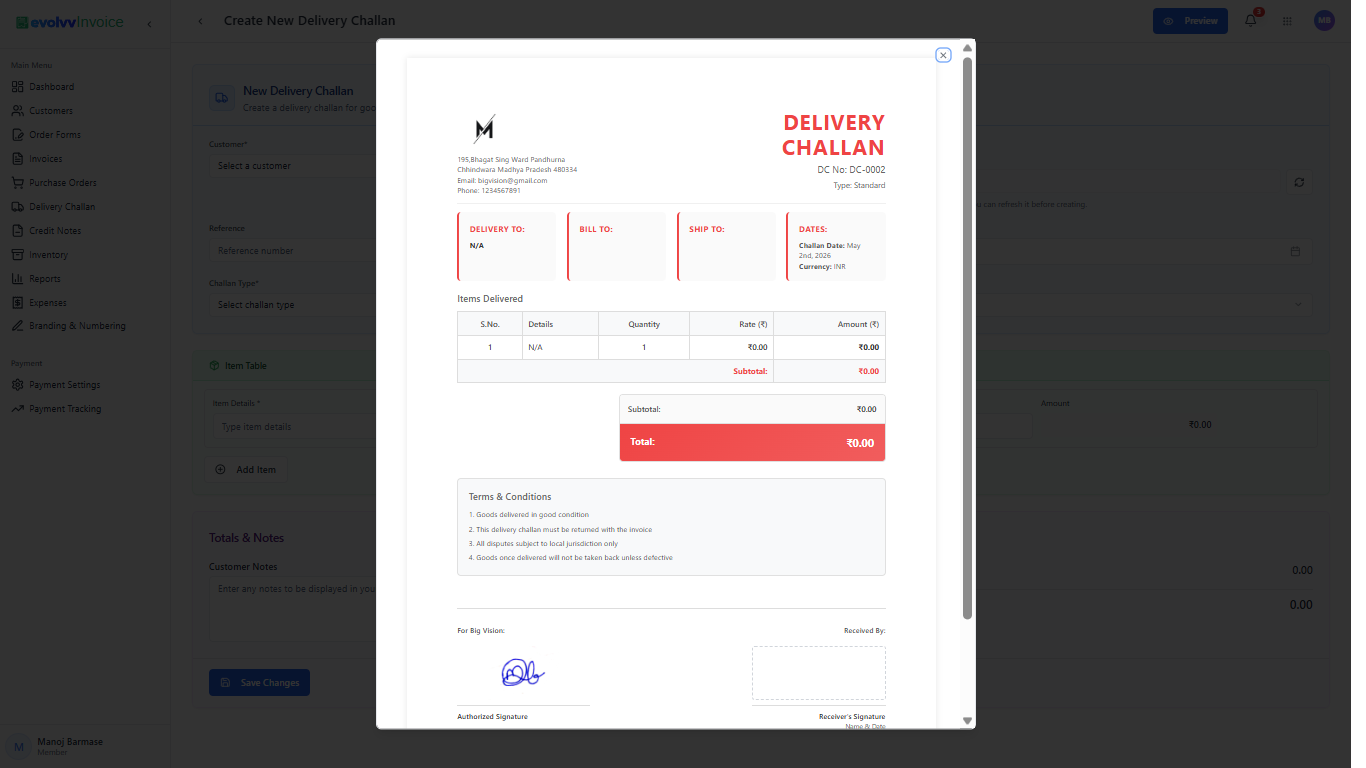
Click the Preview button at the top right to generate a modal of the final document.
This professional document clearly separates the Delivery To and Bill To addresses. Crucially, the bottom of the Evolvv Delivery Challan includes standardized Terms & Conditions regarding goods inspection, alongside dedicated signature blocks for your Authorized Signatory and the Receiver's Acknowledgement (Name & Date).
Once verified, click Save Changes to record the challan and print it for your shipment!