Issuing and Managing Credit Notes
Mistakes happen, goods get returned, and billing adjustments are an inevitable part of doing business. Instead of deleting or altering an already finalized invoice—which violates strict accounting principles—the Evolvv billing software allows you to issue formal Credit Notes.
A Credit Note serves as a negative invoice, legally documenting a reduction in the amount owed by a customer. This ensures your revenue reporting and tax compliance remain perfectly intact.
Here is how to draft and manage your Credit Notes.
Step 1: The Credit Notes Dashboard
Navigate to the Credit Notes tab located in your left-hand Invoicing menu.
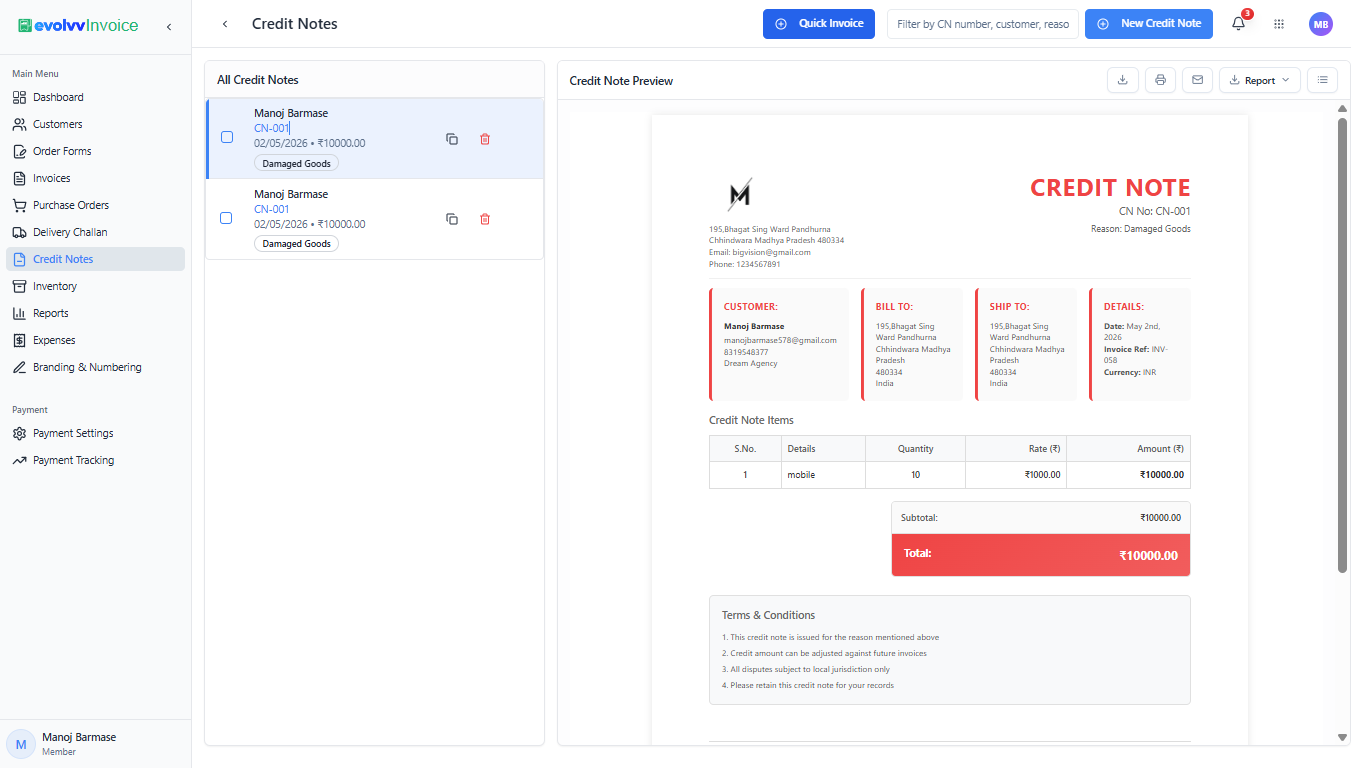
This dashboard provides a complete audit trail of all your billing adjustments.
- Adjustment Log: The left panel lists all issued credit notes, displaying the customer name, unique CN number (e.g., CN-001), date, and the total refunded or adjusted amount.
- Reason Tracking: Notice the pill-shaped tags (e.g., "Damaged Goods"). Evolvv highlights the reason for the adjustment right in the list view for quick financial auditing.
- Instant Preview: Click any record to view the full document in the right-hand preview pane.
Step 2: Creating a New Credit Note
To issue a new adjustment or refund, click the blue + New Credit Note button at the top right.
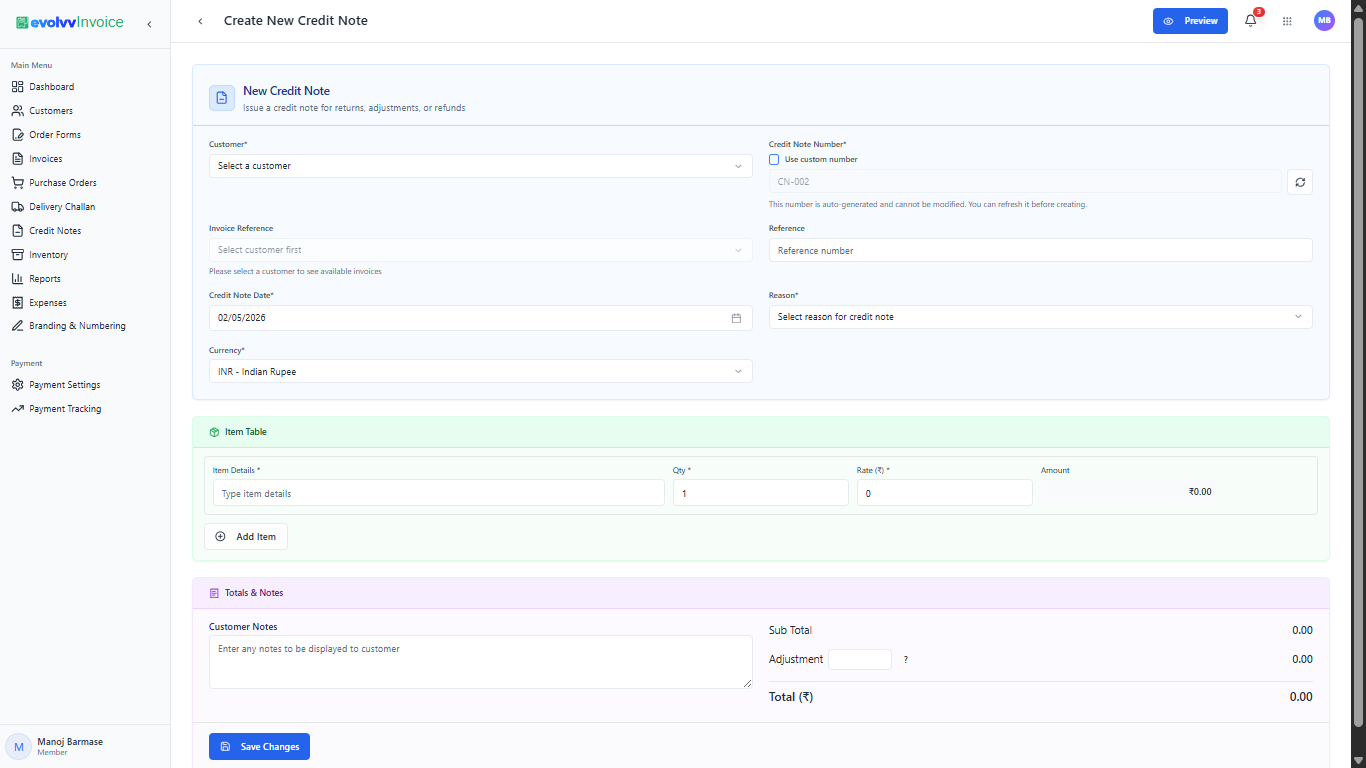
Core Setup & Linking:
- Customer & Invoice Reference: First, select your Customer. Then, use the Invoice Reference dropdown to link this credit note directly to the original invoice. This cross-linking is an industry-standard accounting practice.
- Credit Note Details: The system generates a sequential Credit Note Number. You must explicitly select a Reason (e.g., Return, Discount, Overcharge) from the dropdown.
Adjustment Items & Notes:
- In the Item Table, add the specific products or services being refunded. Enter the quantity and rate to calculate the exact adjustment amount.
- You can also use the Adjustment field in the Totals section for flat-fee corrections. Add context in the Customer Notes so your client understands the exact nature of the refund.
Step 3: Preview and Finalize
Always preview financial adjustments before officially recording them.
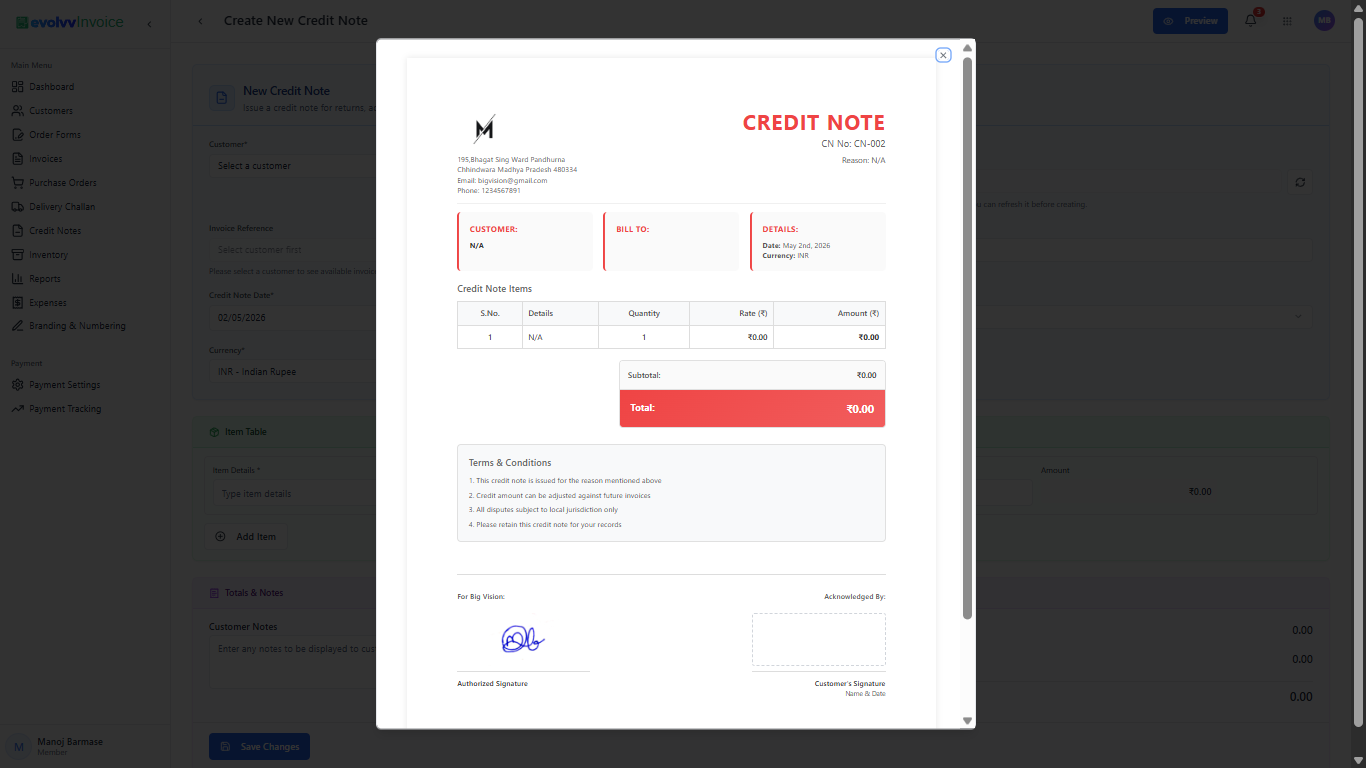
Click the Preview button at the top right. The modal displays a professionally formatted document, distinctly titled CREDIT NOTE in bold red to avoid confusion with standard invoices.
The document clearly outlines the linked Invoice Reference, the adjustment reason, and standard legal terms (e.g., "This credit note is issued for the reason mentioned above" and "Credit amount can be adjusted against future invoices").
Once the data is verified, click Save Changes to finalize the document and balance your ledger!