Managing Terms & Conditions (T&C) Templates
Every professional transaction requires a solid legal foundation. Whether you are defining payment terms, service scopes, or liability limitations, the Evolvv electronic signature software allows you to standardize your legal language through reusable Terms & Conditions (T&C) templates.
By maintaining a centralized library of T&Cs, your team can rapidly deploy legally compliant agreements without the risk of copy-paste errors or outdated clauses.
Here is how to create and manage your T&C templates effectively.
Step 1: Accessing the T&C Library
Navigate to the Templates section in your left-hand menu and select T&C Templates.
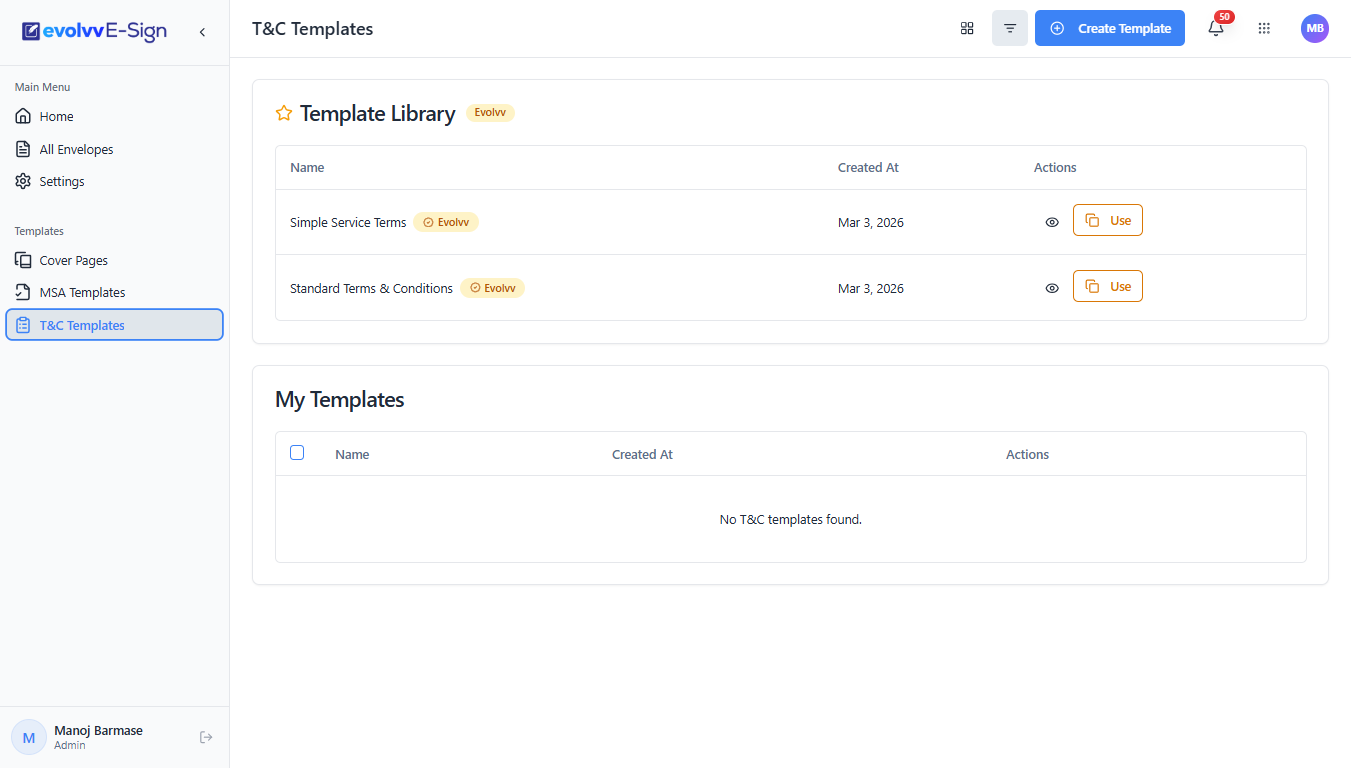
This dashboard provides a clear overview of all available legal frameworks, divided into two sections:
- Template Library: These are pre-configured, standard templates provided by Evolvv (e.g., Simple Service Terms). You can click the Use button to immediately inject them into a new signature envelope.
- My Templates: This section displays the custom terms and conditions drafted specifically for your organization's unique requirements.
Step 2: Drafting a Custom T&C Template
To digitize your own company policies or specific service terms, click the blue + Create Template button at the top right of the screen.
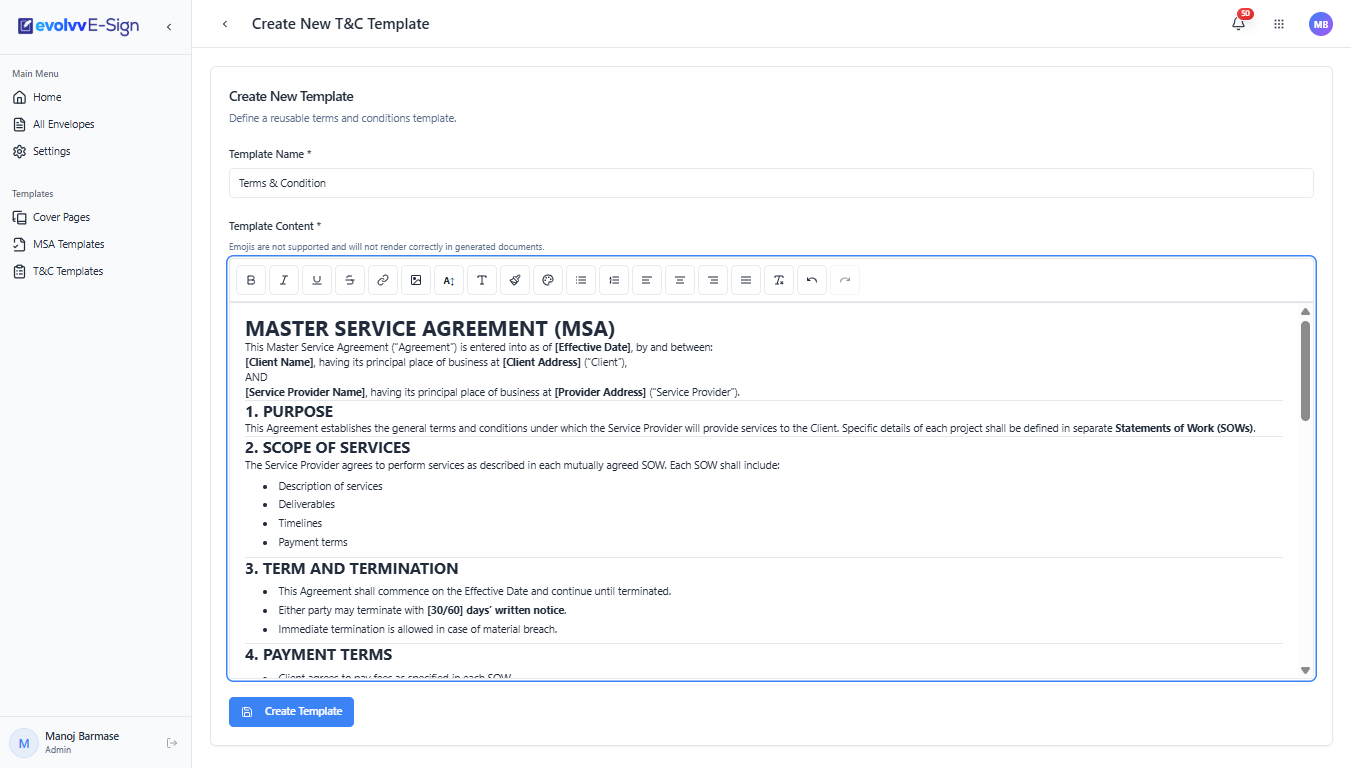
The creation interface features a powerful rich text editor designed specifically for legal drafting:
- Template Name: Provide a highly specific internal name (e.g., "Standard Software Licensing Terms") so it is easily identifiable by your sales and legal teams.
- Template Content: Paste your legal text directly into the editor. Use the formatting toolbar to structure the document with bold headings, bulleted lists, and clear alignments.
- Note: To maintain strict legal formatting and rendering compatibility across all devices and PDF generators, emojis are not supported within the editor.
Once you have meticulously reviewed your clauses, click the Create Template button at the bottom.
Step 3: Previewing and Finalizing
Before deploying your newly created terms to actual clients, it is highly recommended to perform a visual review.
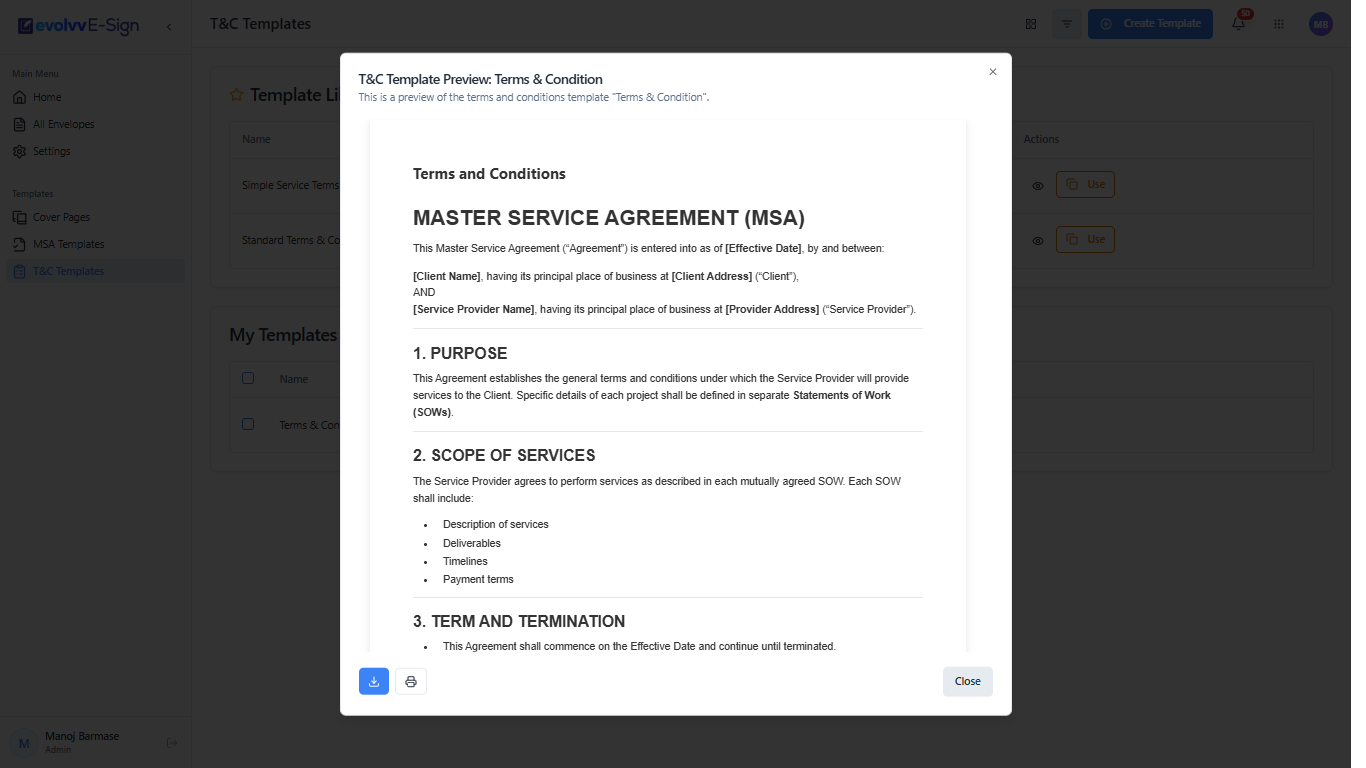
From your dashboard, click the Preview (Eye) icon next to your new template. A modal will pop up, rendering the text exactly as it will appear on the final, client-facing document.
This preview window also provides convenient Download and Print icons at the bottom left, allowing you to generate a physical or PDF copy for offline legal review.
Once verified, your T&C template is fully operational and ready to be attached to your next document envelope!