Managing Master Service Agreement (MSA) Templates
Drafting complex legal contracts from scratch for every new client is time-consuming and prone to human error. The Evolvv electronic signature platform solves this by allowing you to build, store, and deploy reusable Master Service Agreement (MSA) templates instantly.
By utilizing the MSA Templates module, your sales and legal teams can ensure standardized contract language across the entire organization while drastically reducing turnaround times.
Here is how to manage and create your MSA templates.
Step 1: The MSA Templates Library
Navigate to the Templates section on the left-hand menu and select MSA Templates.
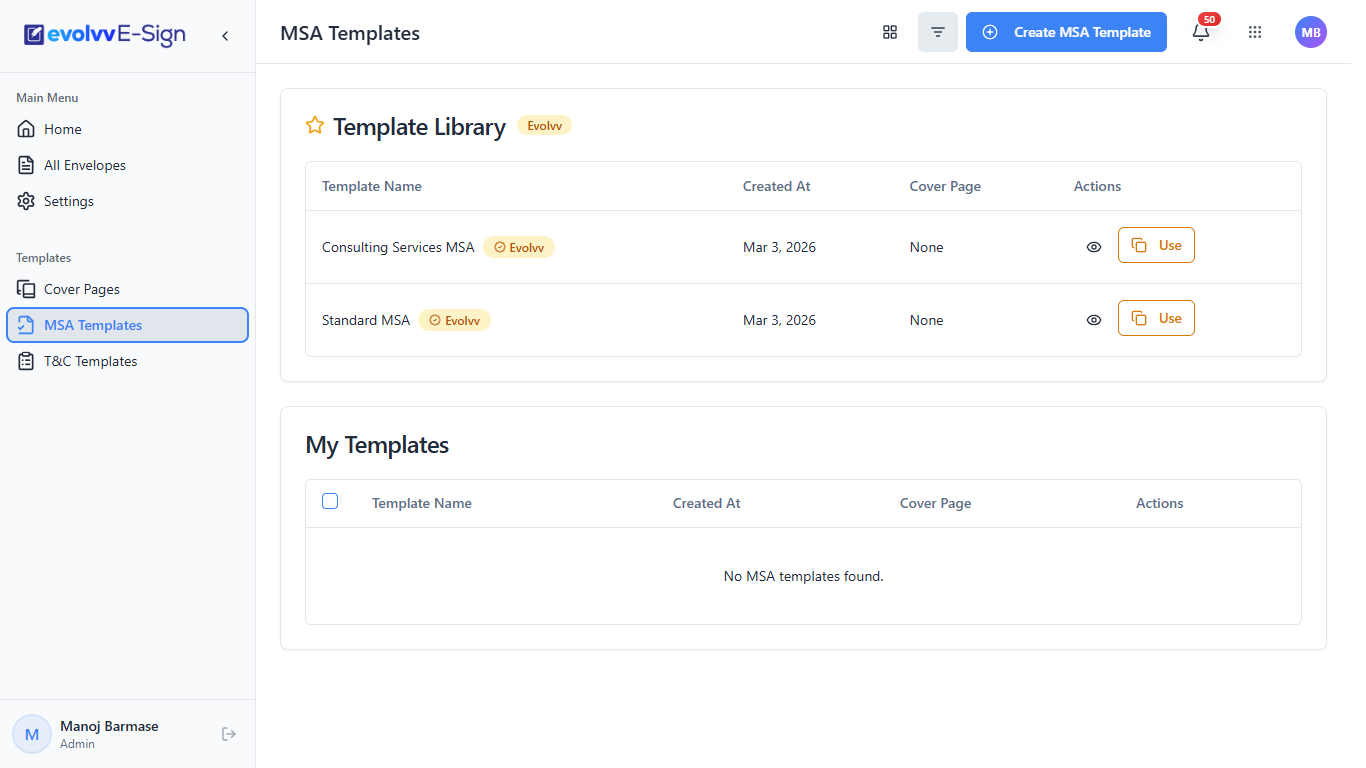
Your dashboard is divided into two highly organized sections:
- Template Library (System Default): Evolvv provides expertly drafted, pre-configured MSAs out of the box. You can click Use to immediately deploy these standard templates into a new signature envelope.
- My Templates: This section houses all the custom agreements crafted specifically for your business. You can preview, edit, or delete your custom drafts using the action icons on the right.
Step 2: Drafting a Custom MSA Template
To digitize your own legal agreements, click the blue + Create MSA Template button at the top right of the dashboard.
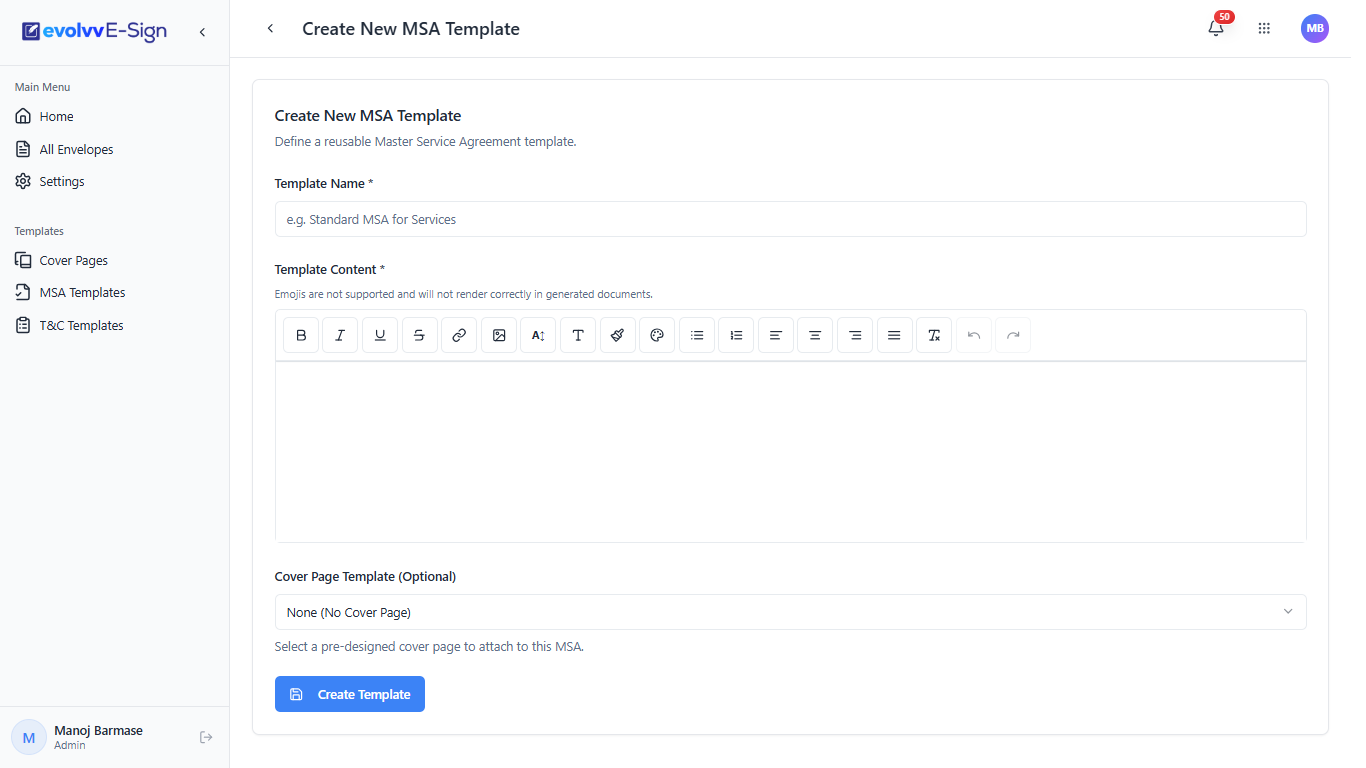
The template builder provides a seamless environment for drafting legal text:
- Template Name: Assign a clear, internal name to your contract (e.g., "Standard MSA for IT Services") for easy retrieval.
- Template Content: Paste your legal agreement into the Rich Text Editor. You can use the formatting toolbar to apply bold text, headings, bullet points, and hyperlinks to structure your clauses professionally. (Note: Emojis are disabled to maintain strict legal document standards).
- Cover Page Template (Optional): Elevate your contract's presentation by selecting a pre-designed branding cover from the dropdown menu. This seamlessly merges your visual identity with your legal text.
Once your contract language is finalized, click Create Template.
Step 3: Previewing and Deploying Your MSA
Before sending a newly minted MSA to a client, you should review its formatting and structure.
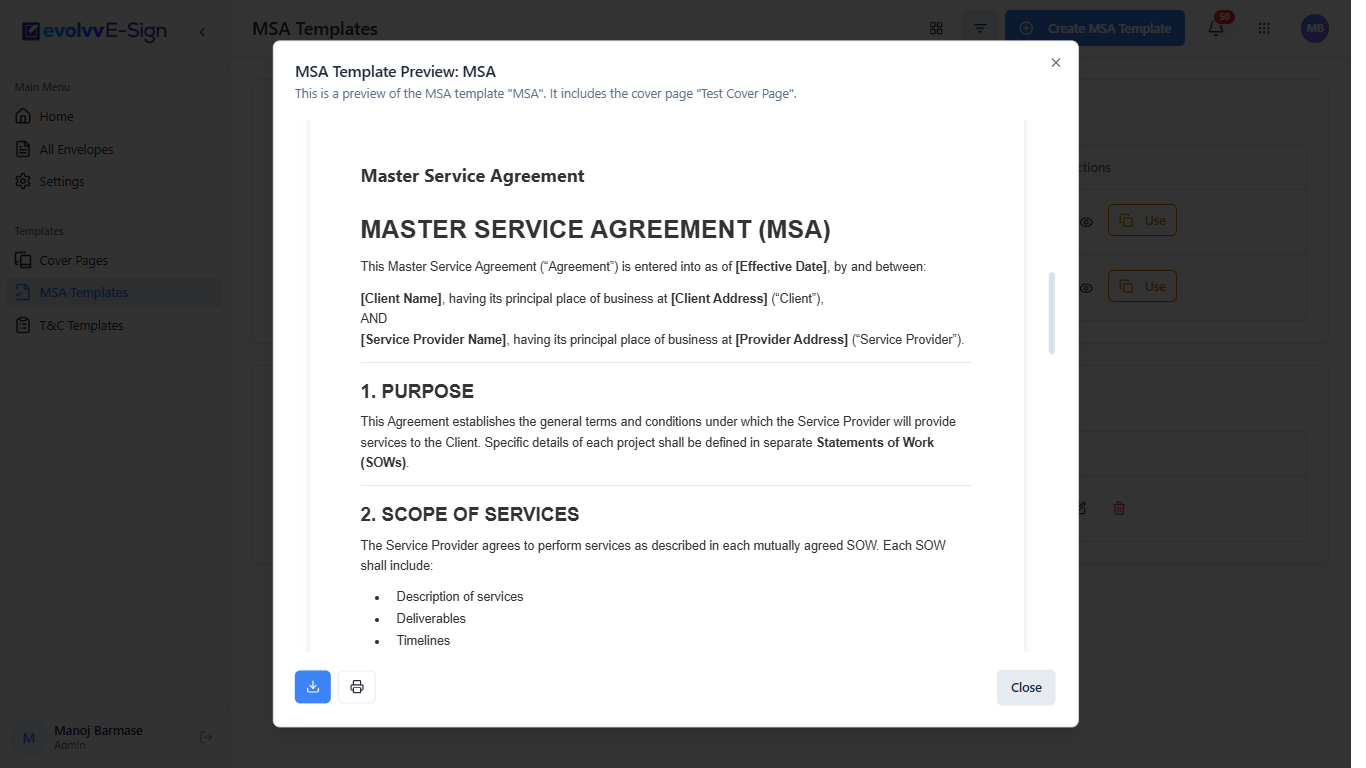
Click the Preview (Eye) icon next to your template in the dashboard. A modal will appear displaying the exact layout your clients will see, including the attached cover page and the formatted clauses.
From this preview screen, you can also Download a PDF copy or Print it for physical archiving. When you are ready to execute the contract, simply select this template during the standard "Send for Signatures" workflow!